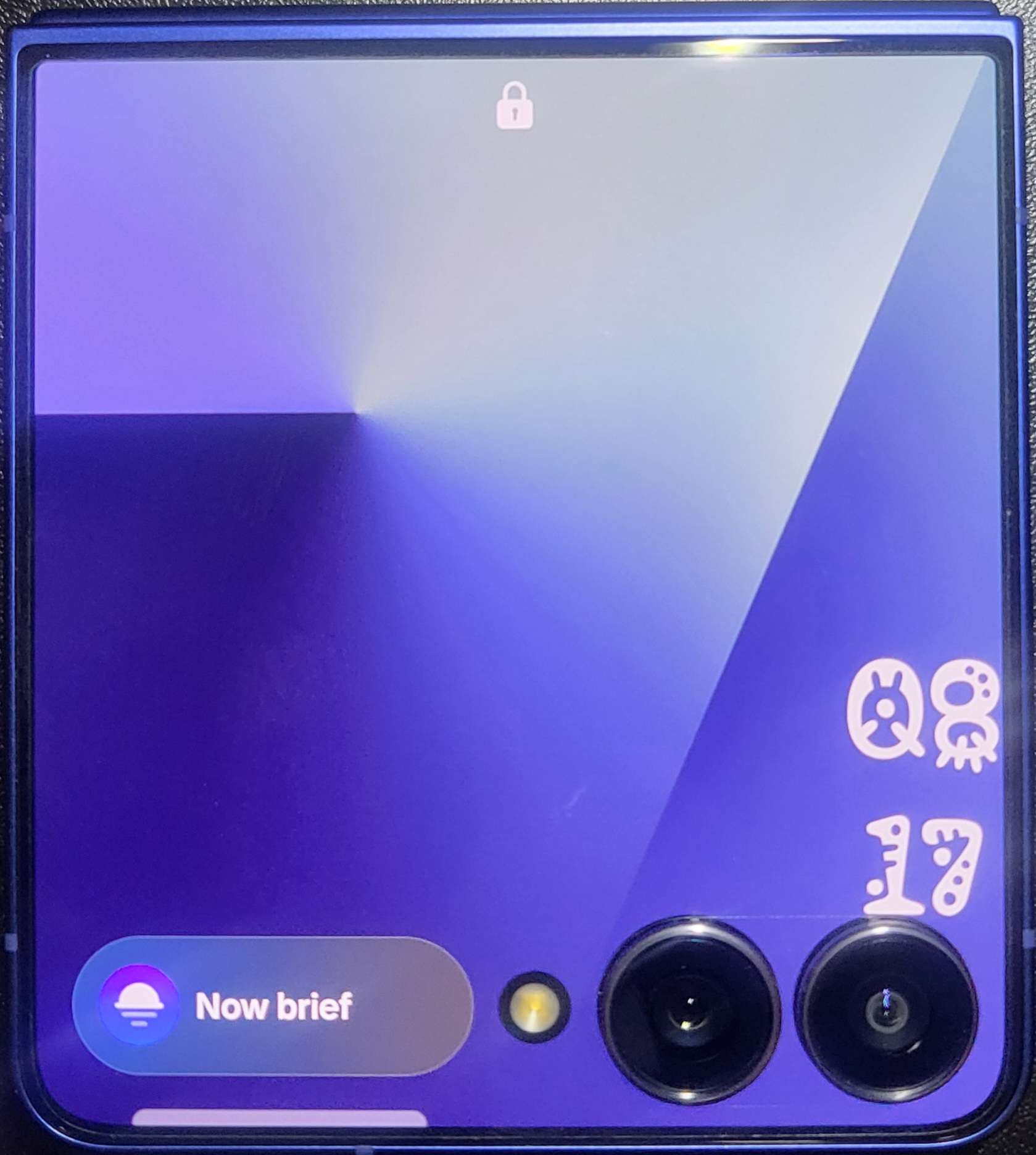
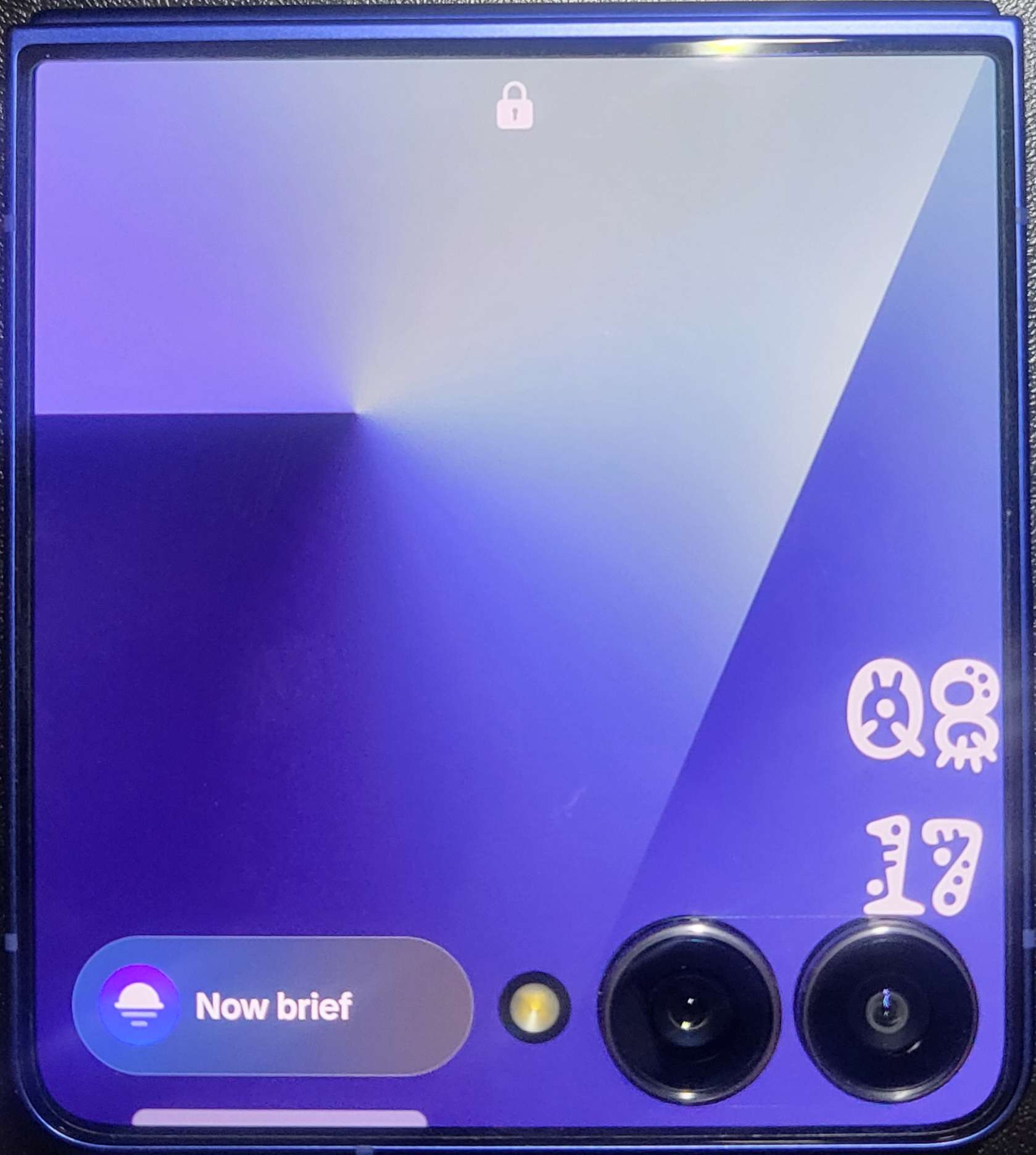
Cover Screen
Overview
This guide covers the creation of a more customizable cover screen for the Galaxy Z Flip series. In this guide, we will also cover the removal of the camera widget.
Required Download(s)
You must download the necessary app(s) from the Samsung Galaxy Store below.
A video guide will be provided below, alongside readable instructions if that is preferred.
Installation Video
Show Installation Video
Installation
- Download the app above.
- Open
Good Lock. Scroll down and download theClock Faceplugin. - Once installed, open
Clock Face. Select Cover Screen. - You will be prompted to turn off
Battery Optimizationfor the app on your phone. PressTurn offandAllowto proceed. - Create a new ClockFace. Tap the
+on the top-right to do so. - Once inside, you can now freely move any widgets you'd like across the cover screen. Edit to your heart's content.
- Once finished, download your
Clock Facewith the download icon at the top-right. - Tap on your creation. Press the
✓to set it as your active Cover Screen, or the✎to edit. - Head over to your
Phone Settingsand go to theCover Screensection. - Tap on the Cover Screen. It should be what you downloaded in
Step 6. Change it back to whatever you had previously. - Tap on the cover screen preview to edit it.
- Tap on the camera widget. Scroll down and set it to
No app. It still appears in the edit screen, but it is effectively gone in real use. - Tap on the clock/time to edit it. Tap
Styleon the bottom. - Scroll all the way to the right. Tap the
◴to viewClock Facesyou created. - Select the
Clock Facethat you want to use. - You are now done :D